Creating Social Ads From Reviews
Turn your best reviews into branded graphics for social media.
Social media is where your customers spend time. The Social Ads tool lets you create professional, branded graphics featuring your reviews - and post them to Facebook, Instagram, X, and LinkedIn in minutes. No design skills needed.
Plan info: Social Ads are available to all plan types. There's no minimum review requirement to get started.
Getting started with Social Ads
To access Social Ads:
1. Go to the Share section in your portal.
2. Click Social Ads.
3. You'll see a live preview on the left and a 3-step wizard on the right.
The tool guides you through selecting a platform, picking a background, writing review copy, and customising appearance. Once done, download your ad as a PNG and post it to your social channels.
Tip: You can also create an ad directly from a review. When viewing a review under Reply, click Push > Create an Ad to jump straight into the Social Ads tool with that review pre-selected.
Step 1: Platform and background
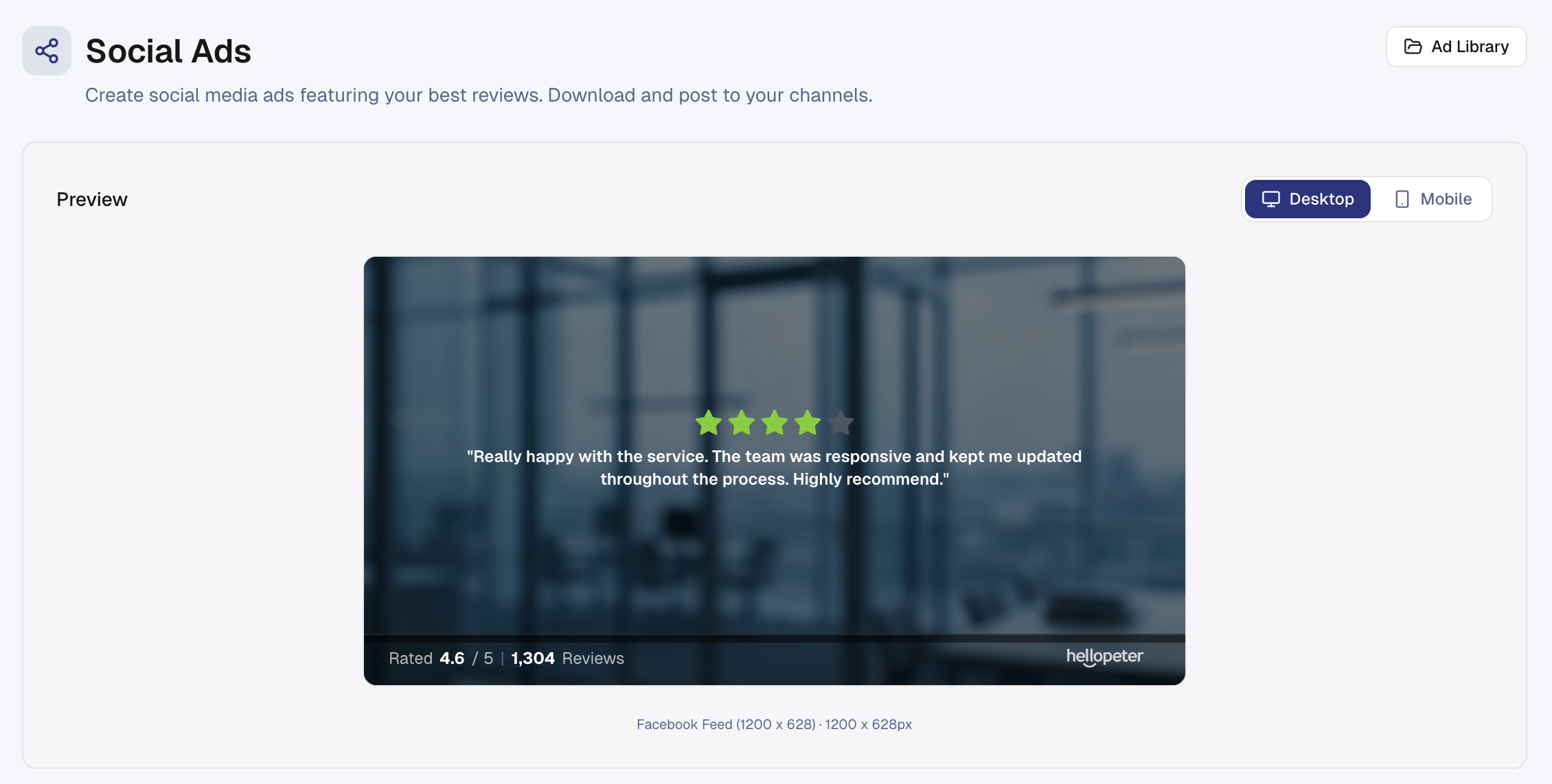
Choose your platform:
Select which social network you're creating for. Each platform has different dimensions, so the ad automatically resizes:
• Facebook Feed - 1200 x 628px. Best for feed posts and carousel ads.
• Instagram Feed - 1080 x 1080px. Square format for grid posts.
• X (Twitter) - 1200 x 675px. Wide format for timelines.
• LinkedIn - 1200 x 627px. Similar to Facebook, sized for professional feeds.
Choose a background:
Browse 55 stock backgrounds across 11 categories:
• Automotive
• Banking & Finance
• Food & Beverage
• Healthcare
• Insurance
• Retail
• Technology
• Hospitality
• Services
• Other
Click any background to select it. The preview updates instantly. Each background is professionally designed to make your review stand out.
Upload a custom background (optional):
If you want to use your own image:
4. Click the My Uploads tab.
5. Click Upload and select a file (max 5MB).
6. The image appears in your custom backgrounds and you can use it across multiple ads.
Tip: Use high-quality images with good contrast. Photos of your business, team, or products work great. Avoid busy backgrounds that compete with your review text.
Step 2: Select a review
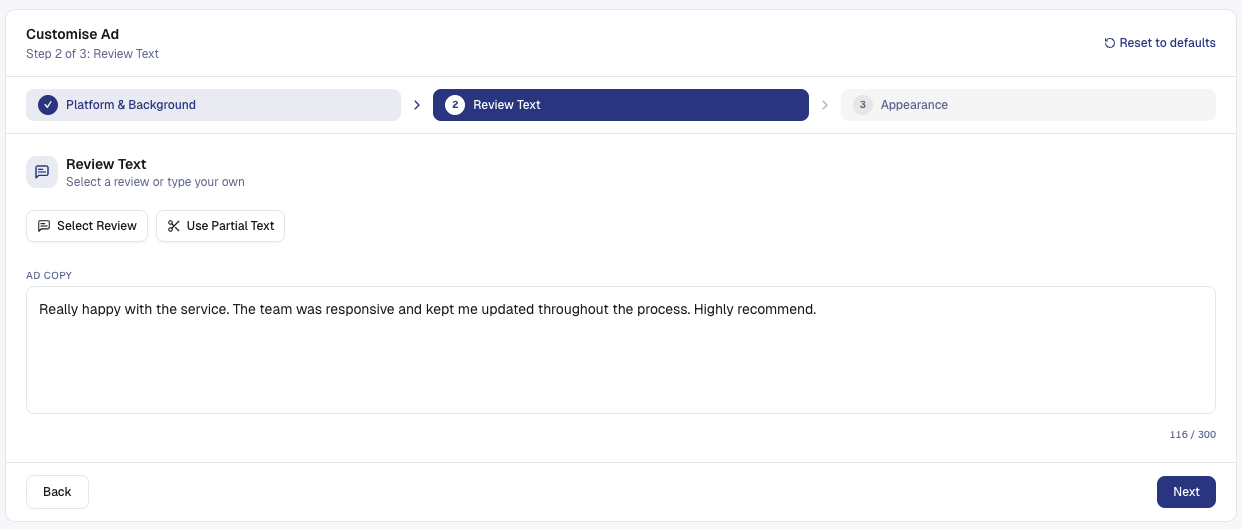
Choose a review to feature:
Click Select Review to open a modal with all your reviews.
Search and filter:
• Search - Type keywords to find specific reviews.
• Channel Filter - Show All reviews, Hellopeter only, or Google only.
• Rating Filter - Show all ratings or filter to specific stars.
Once you find a review you like, click to select it. The review text appears in the preview.
Reviews longer than 300 characters:
If the review is too long, you'll enter a partial text selection mode. A character counter helps you trim it to fit. You can also manually edit the text.
Or write your own text:
Instead of using an existing review, type custom copy (max 300 chars). Use this to craft a testimonial or highlight a specific benefit.
Tip: Choose reviews that mention specific benefits or use engaging language. Avoid generic feedback like "Great service" - look for specific praise like "Fixed my issue in under an hour and went above and beyond."
Step 3: Customise appearance
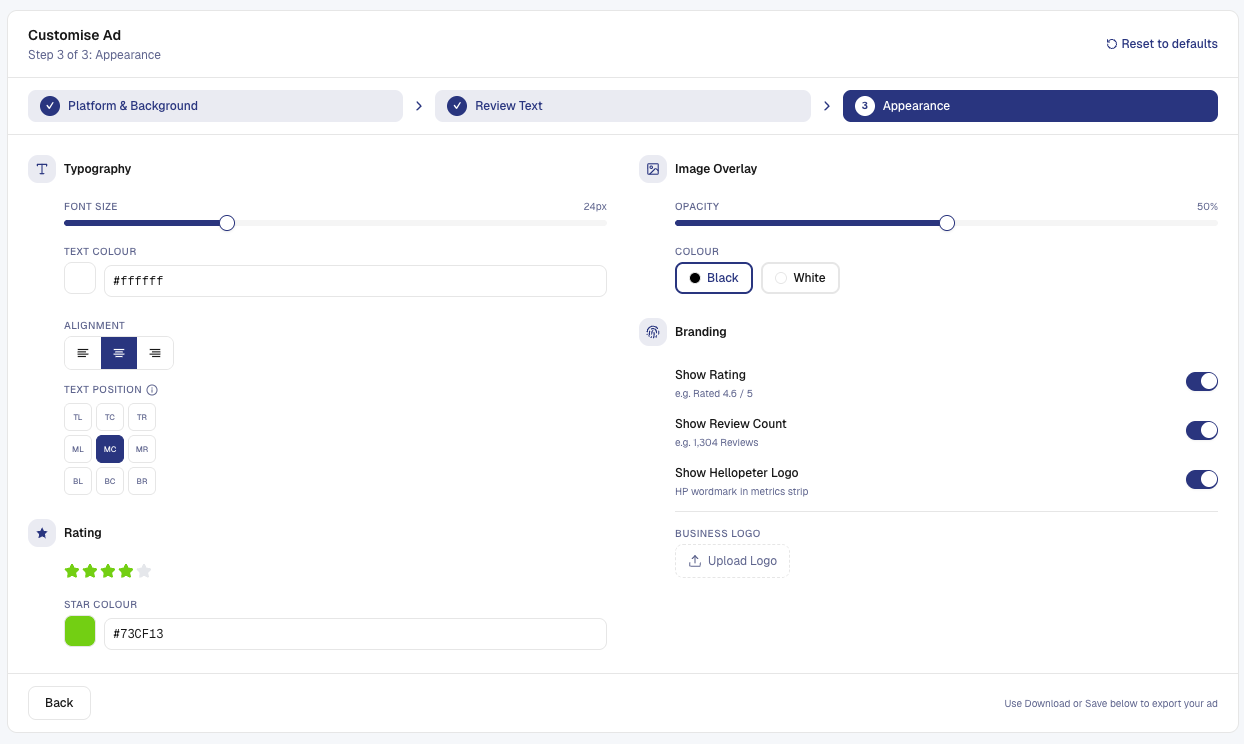
Column 1: Typography and rating
• Font Size - Drag the slider from 14px to 48px. Find the size that's readable but doesn't overwhelm the background. Default is 24px.
• Text Colour - Pick a colour that contrasts with your background (default white). Use the colour picker.
• Alignment - Align text left, centre, or right.
• Text Position - Choose where the review text sits on the ad using a 9-position grid (top-left to bottom-right). Experiment to find the best spot.
• Star Colour - Pick a colour for the star rating. The colour auto-updates based on rating:
- 5 stars: Green (#3EAA6C)
- 4 stars: Lime (#73CF13)
- 3 stars: Yellow (#FFD600)
- 2 stars: Orange (#F29100)
- 1 star: Red (#ED0007)
Column 2: Overlay, branding, and logo
• Image Overlay - Add a semi-transparent layer over your background to improve text readability. Drag the opacity slider (0 - 100%, default 50%). Choose black or white overlay depending on your background.
• Show Rating - Toggle on to display the star rating (on by default).
• Show Review Count - Toggle on to show how many reviews you have (on by default).
• Show HP Logo - Toggle on to display the Hellopeter logo (on by default).
• Business Logo - Upload your logo using the 9-position grid to place it. Toggle dark mode if your logo looks better with brightness adjustments.
Tip: Keep the metrics (rating, review count, HP logo) enabled. They build credibility and help followers recognise your brand as a verified, trusted business.
Publishing your ads
Once you're happy with your design:
Download PNG:
Click Download PNG to save the ad at full resolution with a filename that matches your platform (e.g. "facebook-1200x628.png").
Save to Ad Library:
Click Save to Library to store the ad for later use. Saved ads appear in your Ad Library so you can download them anytime without recreating them.
Publishing instructions:
The ad card shows platform-specific guidance:
• Facebook - Post to your business page or use as an ad in Ads Manager.
• Instagram - Post to your feed or use as part of a carousel.
• X - Tweet the image or include in a thread.
• LinkedIn - Post to your business page for maximum professional reach.
Using your Ad Library
All saved ads go to your Ad Library for easy management.
To access your library:
7. Click Ad Library at the top of the Social Ads page.
8. See all your saved ads in a grid.
Filter by platform:
Use the filter dropdown to show all ads or just Facebook, Instagram, X, or LinkedIn ads.
Download or delete:
• Download - Right-click or use the download icon to save the PNG.
• Delete - Remove an ad permanently. Confirm the deletion.
Tip: Save multiple versions of the same review with different backgrounds and text positions. Post them across different dates to keep your feed fresh without constantly creating new ads.
Tips for great review ads
Pick your best reviews:
Choose reviews that mention specific benefits, outcomes, or emotional impact. "Saved me money and improved my business" beats "Good company."
Keep text short:
The character limit is 300 chars. Aim for 100 - 200 chars so your text is readable at a glance.
Use contrasting colours:
Make sure review text stands out from the background. Use the opacity slider on the overlay if text is hard to read.
Match your brand:
Use colours and fonts that reflect your business. Consistency across ads builds brand recognition.
Test different versions:
Create multiple ads from the same review with different text positions and font sizes. Share the version that performs best, then iterate.
Include the Hellopeter logo:
Displaying the HP logo builds trust. Followers see you use a verified review platform.
Post consistently:
Share one or two ads per week across your channels. More visibility means more review conversions.
Warning: Don't use fake or misleading reviews in ads. Social platforms have strict policies against fake testimonials. Always use genuine reviews from your customers.
Managing your ad collection
Over time you'll build a library of ads. Stay organised:
• Name your ad internally - Save ads with descriptive names if your system supports custom naming (e.g. "Q1 2024 Testimonial - Service").
• Delete old ads - Remove ads after the campaign ends to keep your library clean.
• Re-download as needed - Saved ads stay in your library indefinitely, so you can download them anytime.
Still need help? Use the live chat inside your portal to get in touch with our customer success team.