Working with Customer Data
View customer details, manage tags and branches, and understand review credits.
Customer data helps you follow up, resolve issues, and understand your reviewers. You can view contact details, add tags for organisation, assign branches, and track team notes. Understanding your review credits ensures you get the most value from your plan.
Before you start: Access to customer data depends on your plan and available credits. Learn about your plan's limits.
Accessing customer details
When you expand a review, the Customer Details card shows the reviewer's first name and "Click to view details". Clicking to expand for the first time consumes a review credit and reveals:
• Full name
• Email address
• Mobile number
• Reference number (if provided)
• ID number (if provided)
• Place (if provided)
Below the Customer Details card, click View Reviewer History to see their previous reviews. This shows all reviews the customer has left across Hellopeter, not just reviews for your business. The dialog displays the customer's first name and first letter of their surname, along with a list of all their previous reviews. This is valuable for understanding the full picture of who you're dealing with.
Understanding review credits
Review credits unlock customer contact information. You get a set number per billing period. Viewing a customer's details for the first time consumes one credit. Once unlocked, you can view the same customer's details as many times as you want without consuming additional credits.
Your plan's credits:
• Free Trial: Same as G1 (5 review credits)
• Growth Monthly: Set number renewing on your billing date
• Growth Annual: Set number for the year
• Premium P1-P3: Set number for the year
• Premium P4: Unlimited review credits
When customer details are locked
When you've used all your review credits, customer details appear as redacted dashes. The card shows "You've used all your review credits" with two buttons: Buy Credits and Upgrade Plan.
On Growth Monthly plans, you can wait for credits to renew on your billing date, upgrade to a higher Growth Monthly tier, or switch to Growth Annual or Premium. On Growth Annual and Premium P1-P3 plans, you can purchase additional credits inline using the Buy Credits button.
Using tags to organise reviews
Tags let you categorise and organise reviews for team workflows. Create tags like "Follow-up needed", "Compliment", "Bug reported", or "Product feedback".
Assigning tags from a review
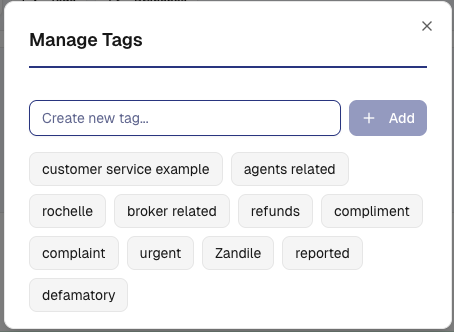
1. Expand the review
2. Click the Tags button in the action bar
3. The Manage Tags modal opens, showing all your tags as pills
4. Click a tag to assign it (selected tags appear highlighted in navy). Click again to unassign.
5. To quickly create a new tag, type a name in the "Create new tag..." input and click + Add
Tags appear as pills below the review alongside any assigned branch.
Managing tags from the filter sidebar
Click Manage tags in the filter sidebar on the Reply page to open the Manage Tags dialog. Here you can:
6. Add a new tag: Type a name in the "Enter tag name..." input and click + Add
7. Edit a tag: Hover over the tag and click the pencil icon. Enter the new name and save. All reviews with the old tag name automatically update.
8. Delete a tag: Hover over the tag and click the bin icon. Confirm the deletion.
The dialog shows your total tag count (e.g., "Your tags (11)"). Click Done when finished.
Warning: Renaming or deleting a tag affects all reviews where that tag has been assigned.
Assigning branches to reviews
Branches represent your locations or departments. Each review can only have one branch assigned.
Assigning a branch from a review
9. Expand the review
10. Click the Branches button in the action bar
11. The Change Branch dialog opens with radio buttons listing all your branches
12. Select the branch you want to assign (only one can be selected)
13. Click Save
To remove a branch from a review, click Remove Branch in the dialog.
Managing branches from the filter sidebar
Click Manage branches in the filter sidebar on the Reply page to open the Manage Branches dialog. Here you can:
14. Add a new branch: Type a name in the "Enter branch name..." input and click + Add
15. Edit a branch: Hover over the branch and click the pencil icon. Enter the new name and save. All reviews assigned to that branch update automatically.
16. Delete a branch: Hover over the branch and click the bin icon. Confirm the deletion.
The dialog shows your total branch count (e.g., "Your branches (5)"). Click Done when finished.
Warning: Renaming or deleting a branch affects all reviews where that branch has been assigned.
Adding team notes
Team notes let you share internal comments about reviews. Only your team sees these notes - reviewers cannot view them.
To add a note:
17. Expand the review
18. Scroll to the Team Notes section at the bottom
19. Click the input field and type your note
20. Click the + button to save
Your note appears in a yellow card with your name and timestamp.
Notes are internal communication only - never visible to customers. Use them to:
• Share context with your team
• Document actions taken
• Flag issues for follow-up
• Ask colleagues for input
Using customer data responsibly
Customer data is sensitive and private. Best practices:
• Only view details you need: Don't browse unnecessarily
• Never share publicly: Keep names and contact info out of public replies (use private replies instead)
• Use for follow-up only: Contact customers to resolve issues or thank them
• Respect preferences: If a customer asks not to be contacted, honour their request
• Store securely: Don't forward customer details to unauthorised parties
Plan comparison: Customer data features
Feature | Free Trial | Growth Monthly | Growth Annual | Premium |
View customer details | Credit-based | Credit-based | Credit-based | Credit-based (P4 unlimited) |
Review credits renew | Same as G1 | Monthly | Annual | Annual |
Purchase more credits | No | No | Yes | Yes (P1-P3) |
Tags & branches | Yes | Yes | Yes | Yes |
Team notes | Yes | Yes | Yes | Yes |
Reviewer history | Yes | Yes | Yes | Yes |
Common issues
"Customer details show dashes instead of contact info"
You've used all your review credits. Click Buy Credits or Upgrade Plan to unlock customer data. On Growth Monthly, credits renew on your billing date.
"I created a tag but can't find it"
Tags appear in the filter sidebar under Tags. If you created it just now, refresh the page.
"I assigned a branch but it's not showing"
Click Save in the Change Branch dialog. The branch pill appears below the review once saved.
"Can the customer see my team notes?"
No, team notes are internal only. Reviewers never see them. You can write freely without worrying about privacy.
"I want to bulk tag multiple reviews"
Currently, you can tag reviews one at a time. Click each review, click Tags, and add the tag. Consider filtering by another criteria first to group similar reviews.
Still need help? Use the live chat inside your portal to get in touch with our customer success team.